Intro to DCU Linux (command-line)
There may be a choice of command-lines. Search for "terminal" or similar.
Terminal
- Terminal
- Default shell is
bash.
Other shells are installed.
- Increase font is Ctrl + which on your keyboard may translate to Ctrl Shift +
- Decrease font is Ctrl -
- In GNOME Terminal, if a URL appears in the text on the command-line,
you can right-click on it to open it in browser.
- Command-line keys:
- ls
- ls
- ls -l
- echo * (all normal, non-hidden files and dirs)
- ls -l *
(if dir, will display contents)
- ls -ld *
(if dir, display name not contents)
- hidden files
- ls -a
- ls -al
- echo .* (all hidden files)
- echo .* * (all files)
- ls -l .* (don't need -a if going to actually name the hidden files)
- ls -ld .*
- environment variables
- set
- set > file.txt
- env
- env | sort
- echo HOME - the string "HOME"
- echo $HOME - the global (environment) variable HOME
- PATH = list of dirs searched
for command when you type a command,
separated by colons (:)
- SHELL = shell we are using (default here is bash)
- Shared, multi-user, file system:
- current and parent dirs
- . (current dir)
- .. (parent dir)
- Example: Run a program that is in the current dir but not in the PATH:
./prog
- cd
- go home: cd
- go up to parent dir: cd ..
- go back to last dir: cd -
- nano
nano shortcuts:
- Ctrl-W - Find
- Ctrl-K - Delete line
- Ctrl-A - Home
- Ctrl-E - End
- Ctrl-Y - PgUp
- Ctrl-V - PgDn
- Alt \ - Start of file
- Alt / - End of file
- Alt Y - Syntax colours off
- Ctrl-O - Save
- Ctrl-X - Exit
- vi
- vim
vim commands:
Esc - menu
:w - save
:q - quit
- up/down arrows
- history
- This is long to type, so we often set up an
alias
like:
h
- !n - repeat command n
- !string - repeat last command that began with string
- !c - repeat last command that began with character c
- !! - last command
- Clear history: history -c
To see your disk quota, type:
quota -s
- quota manual page
-
Last we checked:
You have 2 G disk quota.
If you get "Disk quota exceeded"
- You need to delete some files.
-
To see which dirs are taking up room:
du | sort -n
- There may be a DCU script to help you delete unneeded files. Try:
purge-junk-files
Misc
- Installing and updating applications on Linux is easy (if you have administrator rights):
- APT package management tool ("apt-get" command)
- Will need administrator rights to modify system directories.
(e.g. Install Linux on your laptop and try it.)
- winget
Package Manager for Windows 10 up.
Can use "winget" on the Windows command line.
- Package managers
on different OSes.
- List of package managers
For testing manipulation of data with Linux commands,
it helps if we have some data to manipulate.
So I have installed the works of Shakespeare
to use for testing.
Core information you need
More on the Shakespeare files
- Source:
- I downloaded this copy of the
works of Shakespeare
from the free
eBooks site at the University of Adelaide.
- This has now closed. There are old copies in the Internet Archive at:
- Web pages not on the web:
- These are web pages, but are not on the web.
You cannot view them through http.
- How to view these web pages:
- How do I share these files with you?
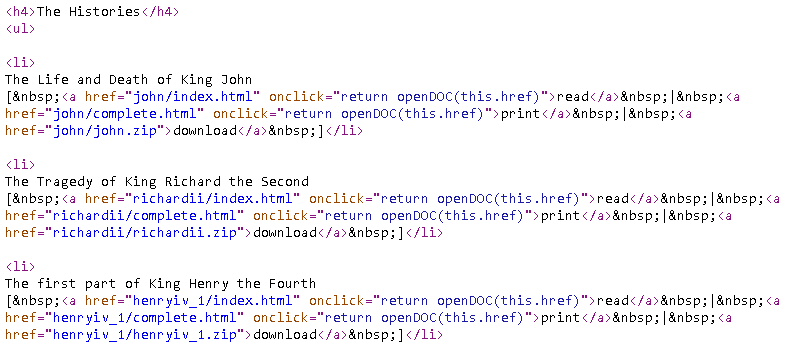
These
Shakespeare files use
relative HTML links, not
absolute HTML links,
so can download to any location and the links still work ok.